Your cart is currently empty!.
You may check out all the available products and buy some in the shop.
Continue Shopping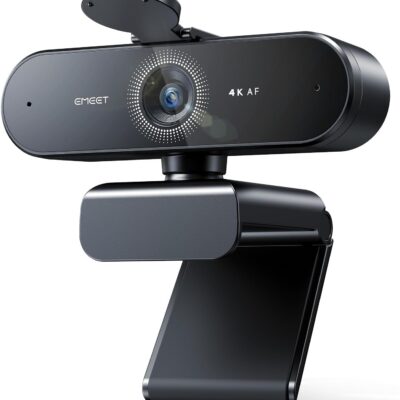


Find webcams for work meetings, online classes, video chats, and streaming. Right Tech Store offers USB webcams with features such as built-in microphones, privacy covers, and adjustable mounts.
Choose from listed 1080p and 4K models from brands including EMEET, Logitech, Acer, NexiGo, and Tewiky. Compare the picture quality, focus type, and connection before buying.
Whether you need a camera for your desktop or another option for your laptop, start with how you plan to use it. A camera for daily calls may need different features from one used to record videos.
A 1080p webcam offers Full HD video. It is a practical option for many meetings, lessons, and calls with friends or family.
This category includes the Logitech Brio 101, NexiGo N60, and other Full HD options.
Compare more than the video resolution. Look at the camera angle, microphone, mounting clip, and cable length. These details affect how well a webcam fits your desk.
Good lighting also matters. A well-lit face can make your video easier to see without changing the camera. Try placing a soft light in front of you rather than a bright window behind you.
A 4K webcam can capture more picture detail than a 1080p model when the software and settings support it. This may be useful for recording videos or showing details on camera.
The EMEET NOVA 4K webcam is listed with autofocus, two microphones, a privacy cover, and a USB-A connection.
Check the settings in your recording or calling app. A 4K camera does not mean that every video call will reach other people in 4K.
The app, computer, internet connection, and selected settings can affect the final picture. Choose based on what your full setup can use, not only the highest number on the box.
A webcam with a microphone can handle both video and voice input. This can make a basic desk setup simpler by reducing the need for a separate microphone.
The listed EMEET C960 and Acer A610 webcam include two microphones.
Some models list noise-reduction features. These can help reduce certain background sounds, but they do not make every room silent.
Choose a quiet spot and test your voice before an important call. Keep the camera within its suggested speaking range for the setup you use.
A built-in microphone records your voice. It does not mean the webcam has speakers. You may still need your computer's speakers, headphones, or another audio device to hear the call.
Autofocus adjusts the camera's focus as the distance to a subject changes. It may be useful if you move during calls or show objects to the camera.
A fixed-focus webcam keeps one focus setting. It can suit a desk where you sit at a steady distance within the camera's supported range.
Neither option removes the need to position the camera well. Check the focus range and use the video preview to see whether your face looks sharp.
If you plan to show small objects close to the lens, check close-focus support. Do not assume every autofocus webcam can show tiny details clearly.
The camera's field of view describes how much of the room appears in the picture. A wider view shows more space around you.
A narrower view may suit a single person at a desk. A wider view may help fit two people or show more of a work area.
The EMEET C960 listing describes a 90-degree view. The EMEET NOVA 4K listing describes a 73-degree view. Compare these features with where you plan to place the camera.
Preview the background before joining a call. Moving the camera or chair can help you improve the frame without buying extra equipment.
A webcam privacy cover places a physical barrier over the lens. Close it when you do not want the camera to show your surroundings.
Several listed webcams include a sliding shutter or separate lens cover. Check which style comes with the model you choose.
Covering the lens does not automatically turn off the microphone. Use your app's microphone controls when you want to mute your voice.
Before a meeting, check both the cover and your video settings. This helps you avoid joining with a blocked camera or the wrong microphone selected.
A monitor clip can hold the webcam above your laptop screen or desktop monitor. Check that the mount suits the screen's shape and thickness.
A tripod lets you place the camera away from the screen. This may help when your monitor is too low or you want a different camera position.
The Tewiky 1080p webcam and 1080p webcam with tripod are listed with tripod options.
Check the package contents carefully. A camera described as tripod-ready may have a mounting point without including the tripod itself.
Leave enough cable length to reach your computer without pulling on the camera. Place the camera near eye level when possible for a natural view.
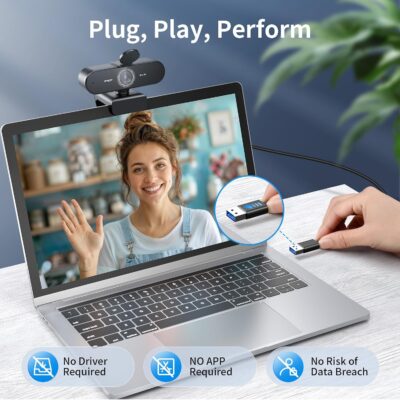
Many listed models connect through USB-A, the familiar rectangular USB port. Check your computer's ports before ordering.
If your laptop only has USB-C, look for a suitable adapter or a model that includes one. The Acer A610 listing includes a USB-C adapter.
Also check your operating system and version. A webcam that supports one computer setup may have different features or software support on another.
Browse our computers and accessories for related products. Always confirm the connection and supported devices before adding an accessory.
VoIP means making voice calls over an internet connection. It is often used for work calls and online meetings.
A webcam adds video to a supported calling app. Its microphone may also provide voice input. You still need a computer, suitable software, and an internet connection.
This category currently focuses on webcams. A webcam does not replace a business phone service or create a calling account on its own.
Some features may need the maker's software. Follow the guide for your exact model and download any required software from the maker's official website.
A 1080p webcam can suit many everyday meetings. Lighting, microphone quality, and your internet connection also affect the call experience.
Not usually. Choose a camera that meets your class platform's needs. A 4K model may be useful for other tasks, such as recording detailed videos.
Yes, if the webcam supports your laptop's system and connection. Select the external camera in your app instead of the laptop's built-in camera.
The current listings describe built-in microphones. Check each product page for microphone features and test the audio in your usual room.
Several listings name these apps as supported. Check the exact model, your computer's system, and any software requirements before buying.
No. A lens cover blocks the picture. Mute the microphone separately in your calling app or device settings.
Yes, with suitable recording software and a supported computer. Check the camera and app settings for the video quality you want.
Choose a webcam that fits your calls, classes, or recording plans. Compare resolution, focus, microphones, mounting options, and USB connections.
Browse the models above or visit the Right Tech Store shop for more products for your workspace.